Table of Contents
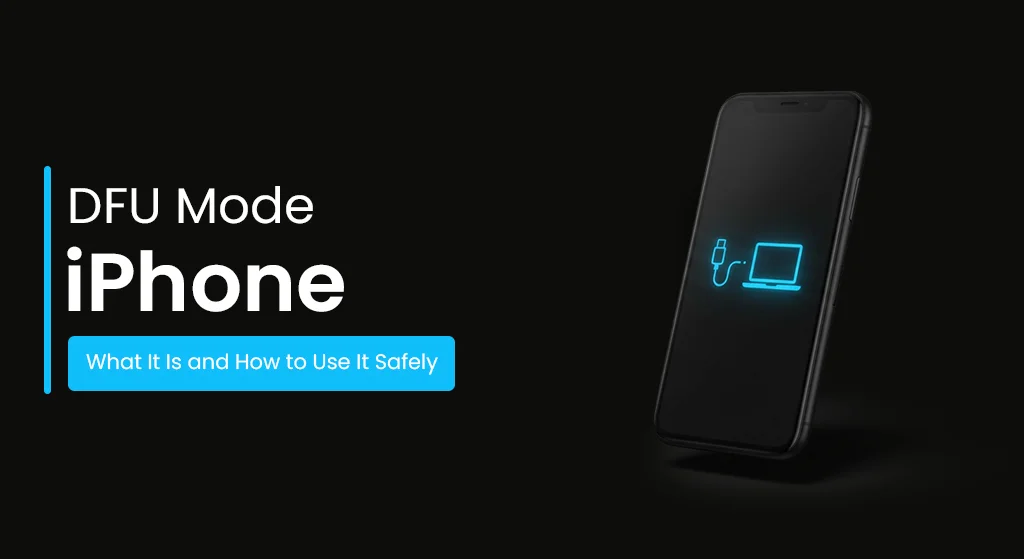
Sometimes, iPhones develop problems which simple resets and standard updates cannot resolve. The device will either become stuck on the Apple logo or experience an update failure or it will not start up normally. The DFU mode iPhone enables users to link their device to a computer without starting up iOS.
Why DFU Mode Is Useful?
The system can be restored and serious software problems can be fixed and previous iOS versions can be safely installed through this advanced control mode. The initial appearance of DFU mode seems difficult to understand but you can use simple instructions to manage your device while preserving its data.
For additional iOS troubleshooting tips, check out iOSFixKit. For official guidance, visit Apple Support on DFU mode.
How to Enter DFU Mode on Your iPhone:
Step 1: Prepare Your Device
Before starting, make sure your computer has the latest iTunes (Windows) or Finder (Mac). Use an original or certified cable to ensure a stable connection. Power off your iPhone completely.
Step 2: Enter DFU Mode
The button sequence varies by iPhone model:
To use the iPhone 8 or newer device start by pressing Volume Up button and then Volume Down button before you press and hold Side button until your screen turns black. The next step requires you, to press and hold both Side button and Volume Down button for several seconds before you can release Side button while continuing to hold Volume Down button.
The iPhone 7 and 7 Plus, require users to press and hold both the Side and Volume Down buttons until the screen turns black. Users must continue to hold the buttons until their computer finds the device.
The iPhone 6s and earlier models require users to press the Home and Side buttons until the screen becomes black. Users must release the Side button while they continue to press the Home button.
Step 3: Restore or Update Your iPhone
You can restore your device or update it after iTunes or Finder detects your device. The iPhone DFU mode restore process functions as a solution. The system enables users to reinstall iOS while they can repair severe software problems and downgrade their system without using unauthorized firmware.
Step 4: Exit DFU Mode
To exit, perform a force restart for your specific model. Your device will reboot into normal mode without data corruption.
Common Issues During DFU Mode
Computer Doesn’t Recognize iPhone:
Charge your iPod before using it to, ensure it has a sufficient level of battery.
Device Won’t Enter DFU Mode:
The timing of the correct button press is very important. Please do it slowly, also, see if you can get the screen to stay black because you will have a more excellent grasp on the timing of when you need to press the buttons.
Screen Shows Apple Logo:
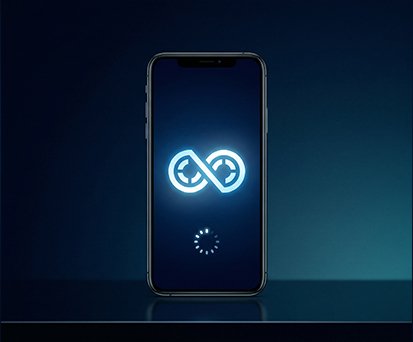
In short, the recovery mode was activated instead of DFU mode. You should try carefully once more.
Restore Fails:
Ensure you use the right firmware, Apple-signed. Unofficial files can show mistakes.
Tips & Warnings:
-
Back up your iPhone prior to going into DFU mode.
-
Use either of the original or certified cables to avoid disconnections.
-
Dodge using third-party images or modified firmware.
-
Keep your iPhone powered and connected through the procedure.
-
Let the trials proceeds, the results are all but certain.
FAQs
Q1: What does DFU mode iPhone do?
DFU mode enables your iPhone to establish a computer connection which permits complete control over system restoration and update processes because it does not load the iOS system.
Q2: Will my data be lost?
Entering DFU mode by power and home key has no data loss. Going for restore in DFU mode will lose all data.
Q3: When should I use DFU mode?
You can use it for devices that fail to boot, get stuck during updates, or require an iOS downgrade.
Q4: Is it safe for beginners?
Yes, just follow the instructions step by step. Elapse of button timing occasionally invokes unwanted mistakes.
Q5: Can it fix all iPhone issues?
In most cases it does. However, hardware issues will require help from professionals.
Conclusion:
Apple provides DFU mode as an advanced diagnostic tool which technicians use to fix iPhone software problems and perform safe software downgrades. The restoration process requires you to complete each step and establish a computer link to protect your data during the procedure. To achieve a successful recovery process you must first create backups and use certified cables while maintaining your patience throughout the operation.