Official Apple Firmware

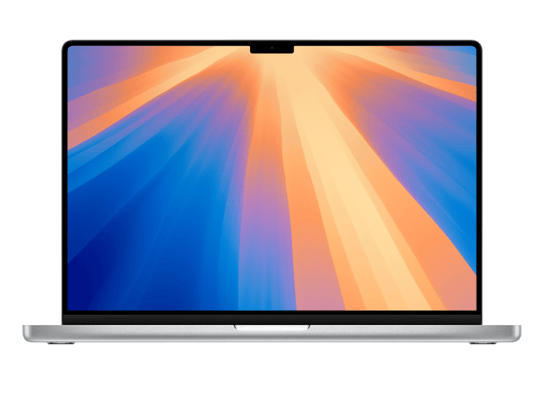
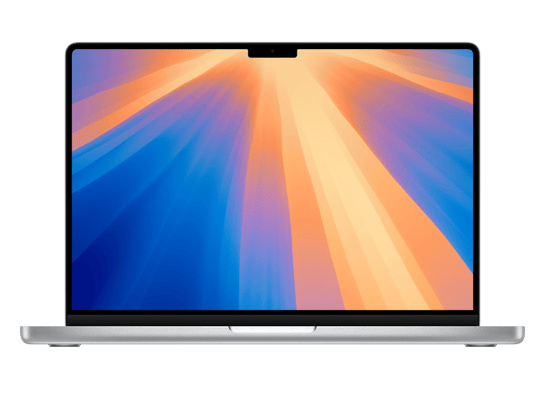
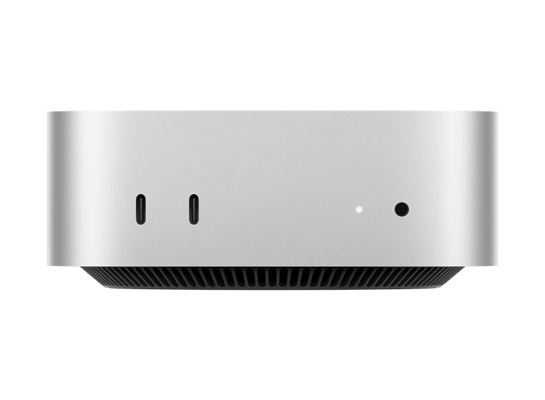
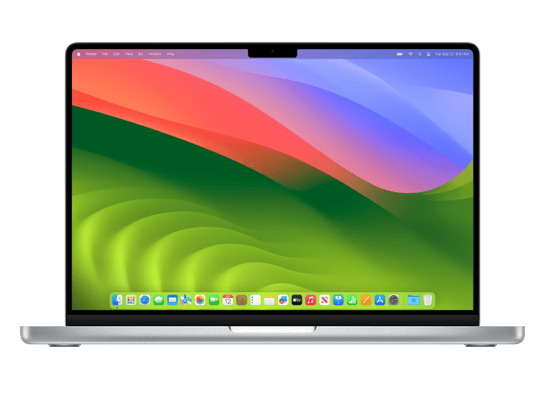
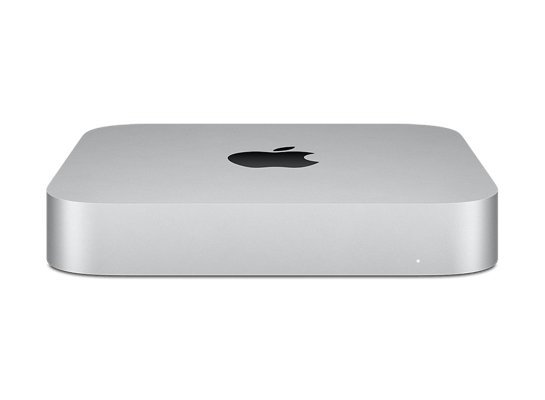
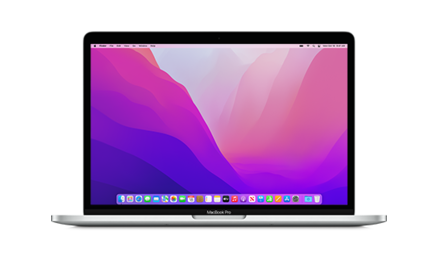
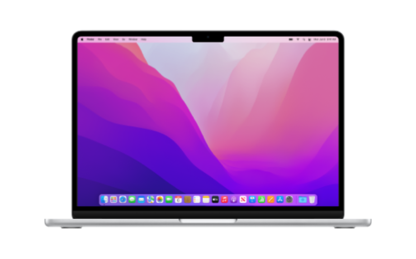
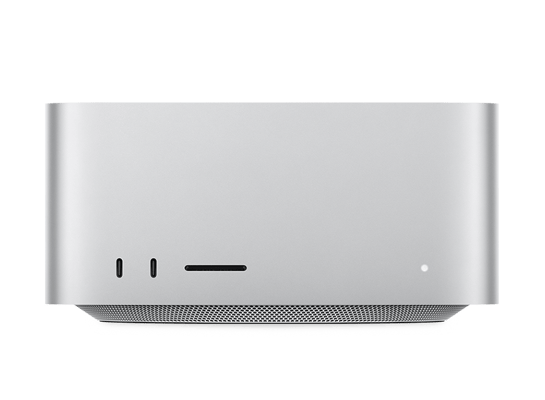
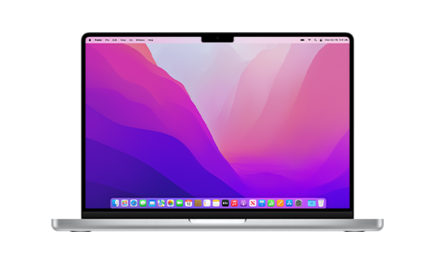
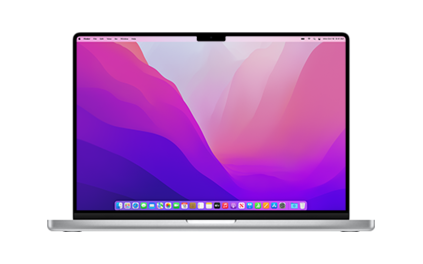
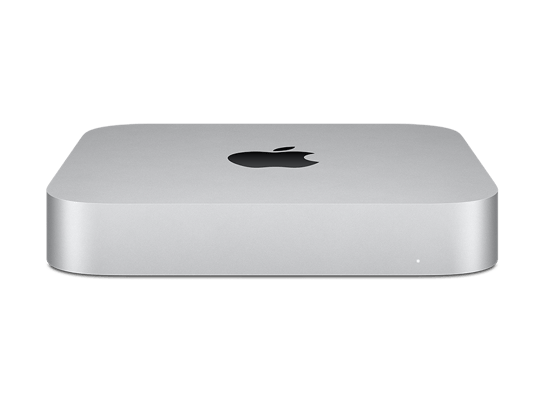
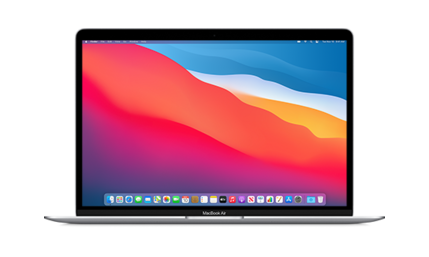
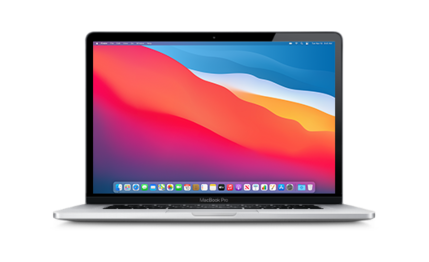
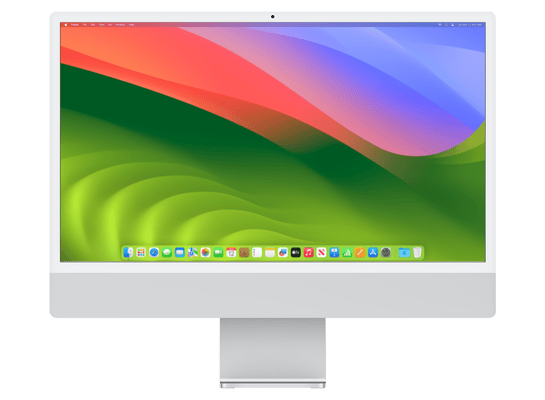
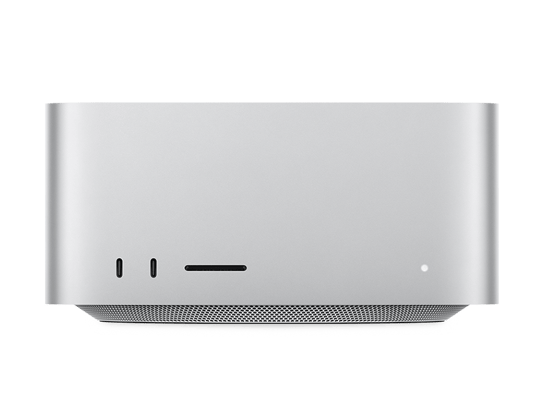
Choose Your Mac

Select your specific model to access the latest signed and unsigned IPSW files. Direct downloads from Apple's CDN servers.

Product

Product
Platform
Platform
Version
Version
Download
Download

Select Model

Find your Mac model below to view compatible firmware versions.

How to Install IPSW Firmware on iPhone or iPad

To restore your iPhone or iPad functionality you should execute these instructions. The method works effectively for users of Windows systems as well as users of Mac systems.
01

Backup Your iPhone or iPad

Before you begin, create a backup of your device using iCloud or iTunes/Finder. The IPSW process needs this step because it protects your photos and apps and essential data.
02

Download IPSW & Prepare Software

Before start you need to download the IPSW file that's right for your device model from a good website. If you are using a Windows computer you have to make sure that iTunes is already, on your computer and that it is updated. On Mac systems that are running macOS Catalina or something newer the IPSW file and everything else is handled through the Finder, not iTunes.

03

Connect Your Device to Computer

Link your iPhone or iPad to the computer via a data cable, and keep in mind maintaining a stable connection is very important. So do not use a cheap cable. They might stop the working process.

04

Turn Off Find My & Enter Recovery Mode

Go to Settings > [Your Name] > Find My > Find My iPhone/iPad and turn it off.
If your device is not responding or has issues, manually put it into Recovery Mode before starting the restore process.

05

Install IPSW & Restore Backup

Windows: Hold Shift and click “Restore iPhone”.
Mac: Hold Option and click “Restore”.
The system will verify and install the firmware. After completion, restore your backup to recover your data.